EVA is the abbreviation for European Vending Association. In Europe, EVA-DTS (Data Transfer Standard) is the dominant, standardized transmission protocol for programming and reading vending machine controls, as well as sales and payment data. The Vencube also operates with this standard. Each EVA list has its own function.
Vencube EVA lists (configurations) can be read not only using the computer program Ventool, but also accessed via Job Online via Vensoft.
Create a new job
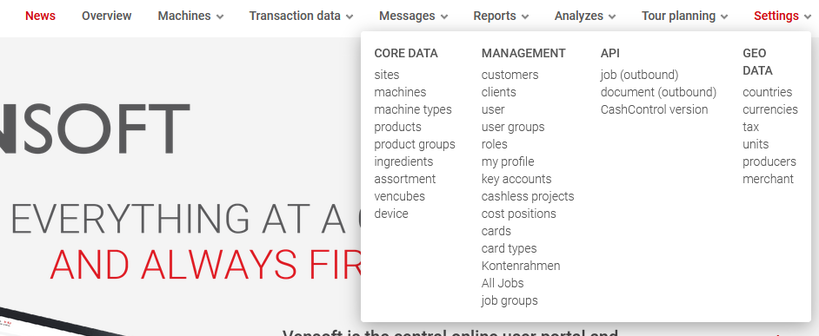
On the Vensoft platform, under ⇒ Settings ⇒ Administration ⇒ Jobs, click the "+" symbol to create a new job.
Create a new job
Select "receive EVA list" as job type
Enter "Eva" for the job type to select and accept "Receive EVA list".
Select "Receive EVA List"
Determine EVA list number
In the next step, the EVA list number must be entered.
Each EVA list has its own function. Detailed explanations of the individual lists can be found in the wiki under the "EVA Lists" section.
If you do not know which EVA list you need for your purposes, please contact our support.
Enter list number
Select Vencubes
In the "Select Vencubes" field, enter the serial numbers of the Vencubes whose EVA lists you want to receive. Then, select and apply all desired Vencube serial numbers. A list of the selected Vencubes will then open below, along with the corresponding information for review. You can remove individual Vencubes that you no longer want to send an EVA list using the trash can in the first column.
Select Vencubes
Select time
At "When is this job active?" you can select the time when the update should be performed. You can choose either "Immediately" or at a specified time in the future, which you can set using the "From" option by selecting the date and time.
Select time
Once the job has been created in Vensoft and the execution time has been reached, a message from the Vencube is required to send the desired EVA list. This can be a sale, a service button, or the "ready for operation" message on the next full hour, provided this setting is enabled in the corresponding Vencube.
Create job group
A job group can be created in the final query. This is recommended if multiple Vencubes are to be updated at once. The advantage is that the update progress can be clearly monitored under ⇒ Settings ⇒ Administration ⇒ Job Groups in the corresponding job group.