Free vend methods
There are two different methods to implement a free vend at the machine:
- Vencube makes free vend
- Machine makes free vend
EVA lists in Vensoft
Vencube makes free vend
Activate free vend
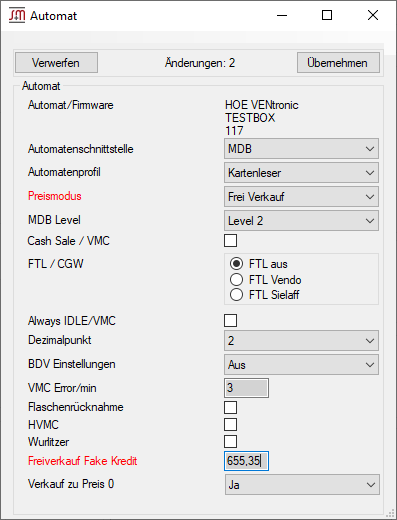
Here the Vencube is switched to free vend with the help of the Ventool program.
|
The machine control must not be set to "Free vend" for this; a payment system interface must be activated (e.g., MDB). Furthermore, sales prices must also be set in the machine control.
A fake credit at 655.35 should trigger a display such as "Make selection" or "Please choose product".
| Program area
|
Function
|
Option
|
| Machine
|
Price mode
|
Free vend
|
| Free vend fake credit
|
655,35
|
If the display like "Make selection" or "Please choose product" does not work, but the fake credit is shown with 655.35, it can also be adjusted to a lower amount (e.g. 10.00).
| Program area
|
Function
|
Option
|
| Machine
|
Price mode
|
Free vend
|
| Free vend fake credit
|
10,00
|
|
|
|
The machine control must not be set to "Free vend" for this; a payment system interface must be activated (e.g., MDB). Furthermore, sales prices must also be set in the machine control.
A fake credit at 655.35 should trigger a display such as "Make selection" or "Please choose product".
| Settings in Vencube
|
| Price mode free vend
|
MA5*GW120*******2*
|
| Free vend fake credit
|
MA5*FCV*65535*1
|
Vencube configuration
to copy:
|
MA5*GW120*******2*
MA5*FCV*65535*1
|
If the display like "Make selection" or "Please choose product" does not work, but the fake credit is shown with 655.35, it can also be adjusted to a lower amount (e.g. 10.00).
| Settings in Vencube
|
| Price mode free vend
|
MA5*GW120*******2*
|
| Free vend fake credit
|
MA5*FCV*1000*1
|
Vencube configuration
to copy:
|
MA5*GW120*******2*
MA5*FCV*1000*1
|
|
Deactivate free vend
|
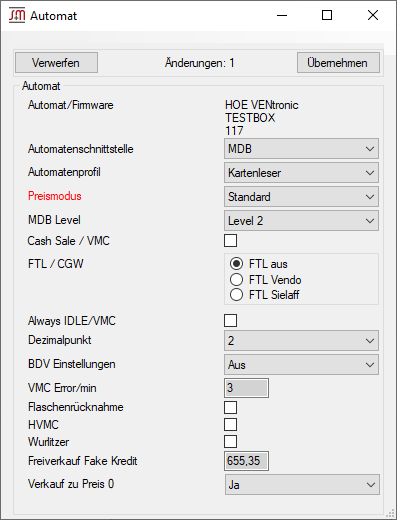
In the Ventool, it is sufficient to set the price mode under Machine back to Standard.
| Program area
|
Function
|
Option
|
| Machine
|
Price mode
|
Standard
|
|
|
|
In the EVA list 50, it is sufficient to set the price mode back to Standard.
| Settings in Vencube
|
| Price mode Standard
|
MA5*GW120*******0*
|
|
Machine makes free vend
All selections to free vend
|
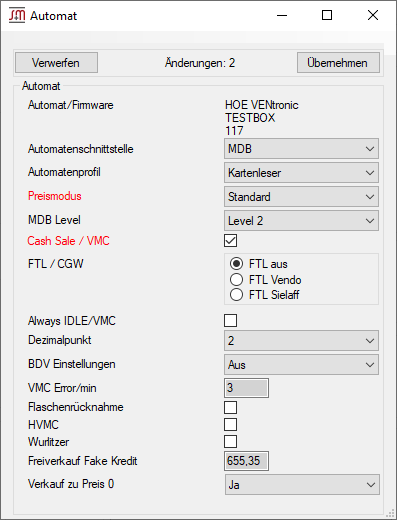
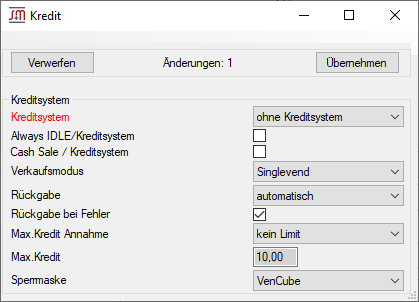
Here, the sales prices of the selections in the machine control are set to 0.00 EUR. Cash Sales must be activated in the machine control!
|
|
The machine control must not be set to "Free vend" for this; a payment system interface must be activated (e.g., MDB). Furthermore, the sales prices of the selections in the machine control must be set to 0.00 EUR.
| Program area
|
Function
|
Option
|
| Machine
|
Price mode
|
Standard
|
| Cash Sale
|
active (checkmark)
|
| Credit system
|
Credit system
|
without credit system
|

|
It must be checked through sales whether the machine supports Cash Sales. If no free vend is reported to Vensoft, the free vend must be set via the Vencube.
|
|
|
|
Partial selections to free vend
|
Here, the sales prices of the selections to be dispensed for free are set to 0.00 EUR in the machine control. All other selections that are to be paid for must have a price set.
|
|
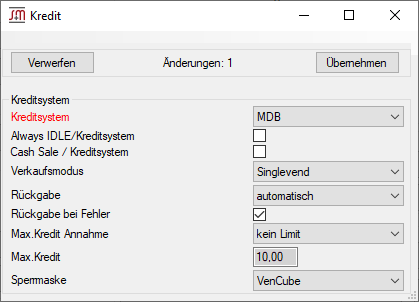
The machine control must not be set to "Free vend" for this; a payment system interface must be activated (e.g., MDB). Furthermore, the sales prices of the selections to be dispensed for free must be set to 0.00 EUR in the machine control. All other selections that are to be paid for must have a price set.
| Program area
|
Function
|
Option
|
| Machine
|
Price mode
|
Standard
|
| Cash Sale
|
active (checkmark)
|
| Credit system
|
Credit system
|
MDB
|
|
|
It must be checked through sales whether the machine supports Cash Sales. If no free vend is reported to Vensoft, the free vend must be set via the Vencube.
|
|
|
|


